Google Docs resume templates: an honest look, and a cleaner step up
Google Docs has five free resume templates. Here is what each is good for, which ones an applicant tracking system reads cleanly, how to make a resume in Google Docs step by step, and a parser-safe way to build one you can still export to PDF or Word.
Key takeaways
- Google Docs has five built-in resume templates in Template gallery, Resumes: Swiss, Serif, Coral, Spearmint, and Modern Writer. They are free, familiar, and autosave to Drive.
- Swiss and Spearmint are close to single-column and the safest to run through an applicant tracking system. Serif and the table-based header blocks in others can be read out of order by a parser.
- The gallery is genuinely good for a fast, clean, one-page resume. Its limits are real too: only five designs, and layout control (columns, spacing, fonts) is narrow compared with a dedicated builder.
- To make a resume in Google Docs: open the Template gallery, pick a Resumes template, replace the placeholder text, then download as PDF or Word from File, Download.
- If a posting uses an ATS, keep a single column and standard headings, or build it in a parser-safe editor and export. A checker shows you exactly how the file reads before you apply.
What you get in the Google Docs template gallery
Google Docs ships five resume templates, and you reach them the same way every time: open the Template gallery from the Docs home screen and scroll to the Resumes row. Each opens as an editable copy in your Drive. Here is an honest read on all five, including which ones an applicant tracking system handles well.
Swiss
ATS-safeThe cleanest of the five. A near single-column layout with light dividers, and the safest to run through an ATS.
Spearmint
ATS-safeA one-column layout with a green accent, similar in structure to Coral. Parses cleanly and reads well on a phone.
Coral
Use with careAn open, casual layout with coral accents, good for startups. Mostly one column, so it parses reasonably when you keep the header simple.
Modern Writer
Use with careA design-forward template with a distinctive header. Looks polished, but the styled header can confuse a strict parser.
Serif
ATS riskA two-column serif layout with subtle accents. It looks professional, but the two columns can be read out of order by an ATS.
The short version: Google Docs is a fine place to write a clean, one-page resume for free, and Swiss or Spearmint will not fight a parser. The catch is the two-column and table-based designs, and the fact that five templates is not many if none fits your field.
How to make a resume in Google Docs
The whole flow takes a few minutes. These five steps get you from a blank gallery to a downloaded file you can attach to an application.
Open the Template gallery
Go to docs.google.com, then click Template gallery at the top right of the home screen. Scroll to the Resumes row to see the five built-in designs.
Pick a template
Click Swiss or Spearmint for the cleanest, most ATS-safe start. Google opens an editable copy in your Drive, so your original stays intact.
Replace every placeholder
Swap in your name, contact details, summary, experience, education, and skills. Delete any section you do not need and keep your headings standard.
Keep the formatting parser-safe
Stay in one column where you can, use a common font at 10-12pt, and avoid adding tables, text boxes, or icons that an ATS cannot read.
Download to apply
Use File, Download, then PDF for a fixed layout or Word (.docx) when a portal asks for it. Follow the posting's format first if it names one.
Skip the setup and start from a clean template
Pick a parser-safe layout, add your experience, and export to PDF or Word when you are done, the same formats Google Docs gives you.
Build my resumeWhere Google Docs templates fall short
None of this means you cannot make a good resume in Google Docs. It means knowing the rough edges so you do not trip over them, especially when a posting runs your file through an applicant tracking system first.
Where the gallery gets rough
- Two-column and table-based layouts. Serif and the styled header blocks in a few templates use columns or tables. A parser can read these cell by cell, so your dates and titles land in the wrong field.
- Only five designs. The gallery has five resume templates. If none fits your field or seniority, your options are to heavily edit one or look elsewhere.
- Limited layout control. Spacing, columns, and section styling are harder to fine-tune in a general word processor than in a tool built for resumes, so tightening a one-page fit takes fiddling.
- Easy to break parsing by accident. Adding a text box for a skills sidebar or an icon next to your phone number feels harmless but hides that text from an ATS.
A cleaner step up
- Start from a template already built to parse cleanly, then edit without breaking the structure.
- Keep a single, readable column with standard headings the whole way through.
- Export to a text-based PDF or Word file when you are done, the same formats Google Docs offers.
- Check the finished resume against a real parser before you send it.
Not sure how your Google Docs resume reads to a machine? Paste it into our free ATS resume checker to see how each section parses before you apply.
A parser-safe alternative you can still export
If you like the convenience of Google Docs but want a layout built to parse cleanly, start from one of these. Each uses a single column, standard headings, and a readable font, and you can export the finished resume to a PDF or Word file the same way you would from Docs.
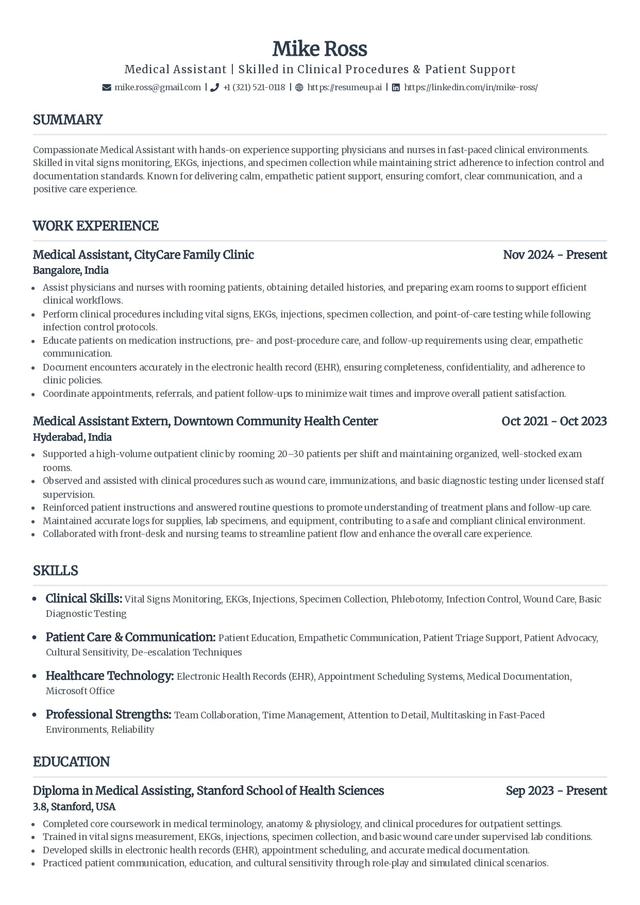
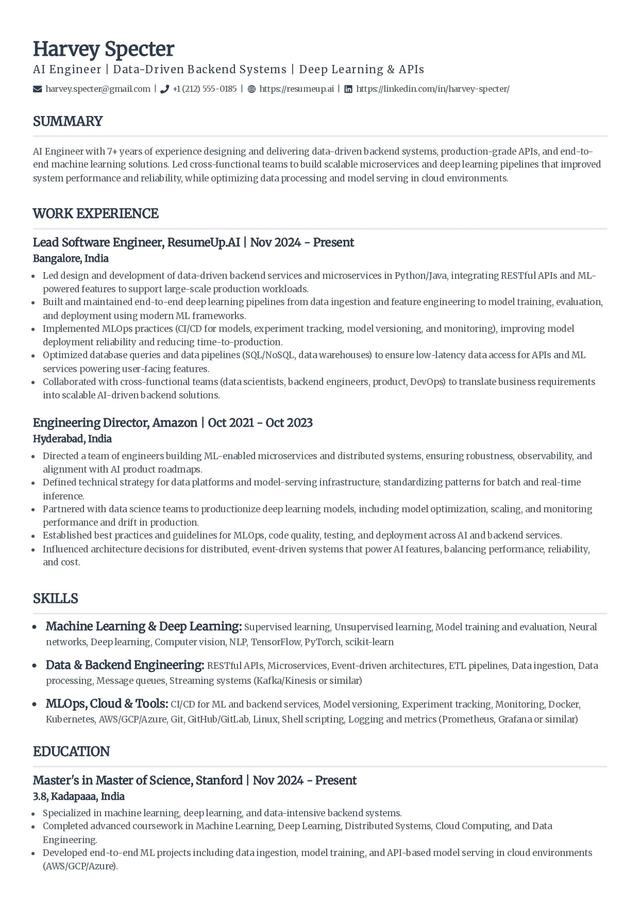
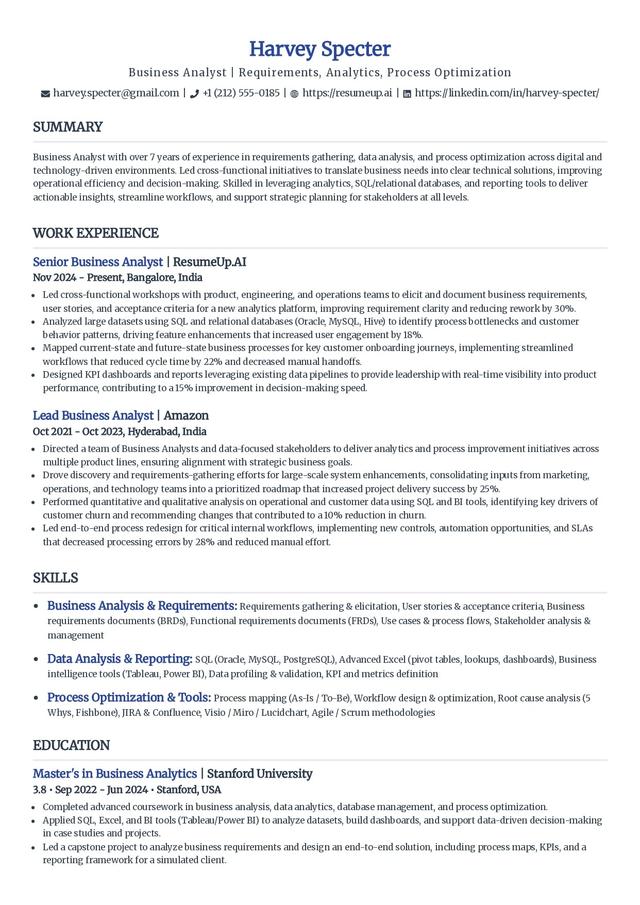
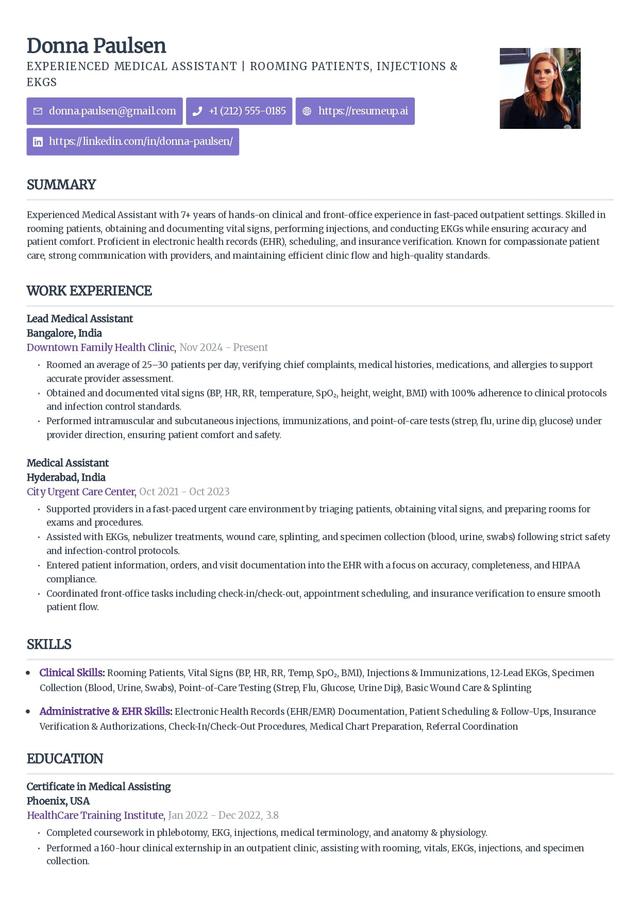
Want the full set grouped by style and career level? Browse the complete resume templates library, or see the cleanest picks on the ATS-friendly resume templates page.
Resume templates and examples by role
Some roles are easier to get right with wording that already reads correctly for the field. These pages pair real examples with layouts that stay parser-safe, whether you build them here or start in Google Docs.
Build a resume that parses cleanly
Start from a parser-safe template, add your experience, and check it against a real parser before you send it.
Frequently asked questions
Does Google Docs have free resume templates?
Yes. Google Docs has five free built-in resume templates: Swiss, Serif, Coral, Spearmint, and Modern Writer. Open Google Docs, click Template gallery at the top right, and scroll to the Resumes row. Each opens as an editable copy in your Drive, so you can fill it in and download it at no cost.
How do I make a resume on Google Docs?
Open the Template gallery from the Google Docs home screen, pick a Resumes template like Swiss or Spearmint, and replace the placeholder text with your own name, summary, experience, education, and skills. Keep a single column, standard headings, and a common font at 10-12pt. When it is ready, use File, Download to save it as a PDF or a Word document to apply.
Are Google Docs resume templates ATS-friendly?
Some are, some are not. Swiss and Spearmint are close to single-column and parse cleanly. Serif uses two columns, and the styled header blocks in a few templates use tables, which an applicant tracking system can read out of order. If a posting runs an ATS, choose a single-column template, keep your headings standard, and check the finished file with a parser before you apply.
How do I download a Google Docs resume as a PDF or Word file?
Open your resume in Google Docs, click File, then Download, and choose PDF Document (.pdf) or Microsoft Word (.docx). Send a PDF when you want the layout fixed across every screen, and choose Word only when a job portal asks for .doc or .docx by name. Make sure the PDF is text-based, not a scanned image, so a parser can still read it.
Which Google Docs resume template is best?
For most people, Swiss is the best starting point: it is the cleanest, closest to a single column, and the safest to run through an applicant tracking system. Spearmint is a good one-column alternative with a little color. Save Serif and the more design-forward options for situations where you know a human, not a parser, reads the resume first.
Can I edit the Google Docs resume templates?
Yes. When you pick a template it opens as your own editable copy, so you can change every word, add or remove sections, and adjust the fonts and spacing. Just take care with columns, tables, text boxes, and icons: they are easy to add and are the most common way a resume becomes hard for an ATS to read.